In the world of social media marketing, the word "engagement" gets thrown around a lot, but few brands actually know how to achieve it.
Brands might pursue the low-effort game of tweeting, ‘gramming, feeding Facebook, and Linkedin-ing updates about products, services, and educational content, but see little engagement.
Engagement just isn’t easy to produce. You have to be, well, engaging. In your business niche, the “like my page” approach probably isn’t going to be effective as you’d like.
Let’s look at ideas that could make you a force to be reckoned with. I’ve organized them into an AEIOU list. (I want to call it an acronym, but how would you pronounce the five vowels?)
A is for Ask
The best way to engage someone is to ask a question. “How are you?” and “How’s it going?” are popular options in conversion, but too dull for social media warfare.
“What’s your name?” probably won’t work and “What’s your email?” might come off as a bit too forceful. How about …
“What do you think?” Yes! That’s a winner.
People like to think things through. They like to hear from other thinkers. Certainly, they want other people to know what they think. Try prompting your audience with one of the following "What do you think?" strategies:
Probe their personality. Post a question that invites people to share their opinion or weigh in on something.
Play the “test your knowledge” game. It’s irresistible.
Post a poll. It’s easy to create polls on Twitter and Facebook. In addition to engaging your followers, you stand to learn meaningful things about them too.
Respond to my email. Email from brands are bound to ask you to click-through to read, watch, and try or buy something, but how often do they simply ask you to write back? I find this this be an enormously engaging strategy and have seen it work for my brand and many others. Notice I wrote, “Respond to my email,” not “our email” or “this email.” A human-to-human first person approach will be the engaging way to call this play.
Just ask. Interactivity 101: simply post a question. Whether done so in a social stream, blog post, online group or community, or on a Q&A site such as Quora, I’ve witnessed asking followers relevant, provocative, and timely questions creates some of the most engaging and thought-provoking social media activity of all.
Let's take a look at a few examples:
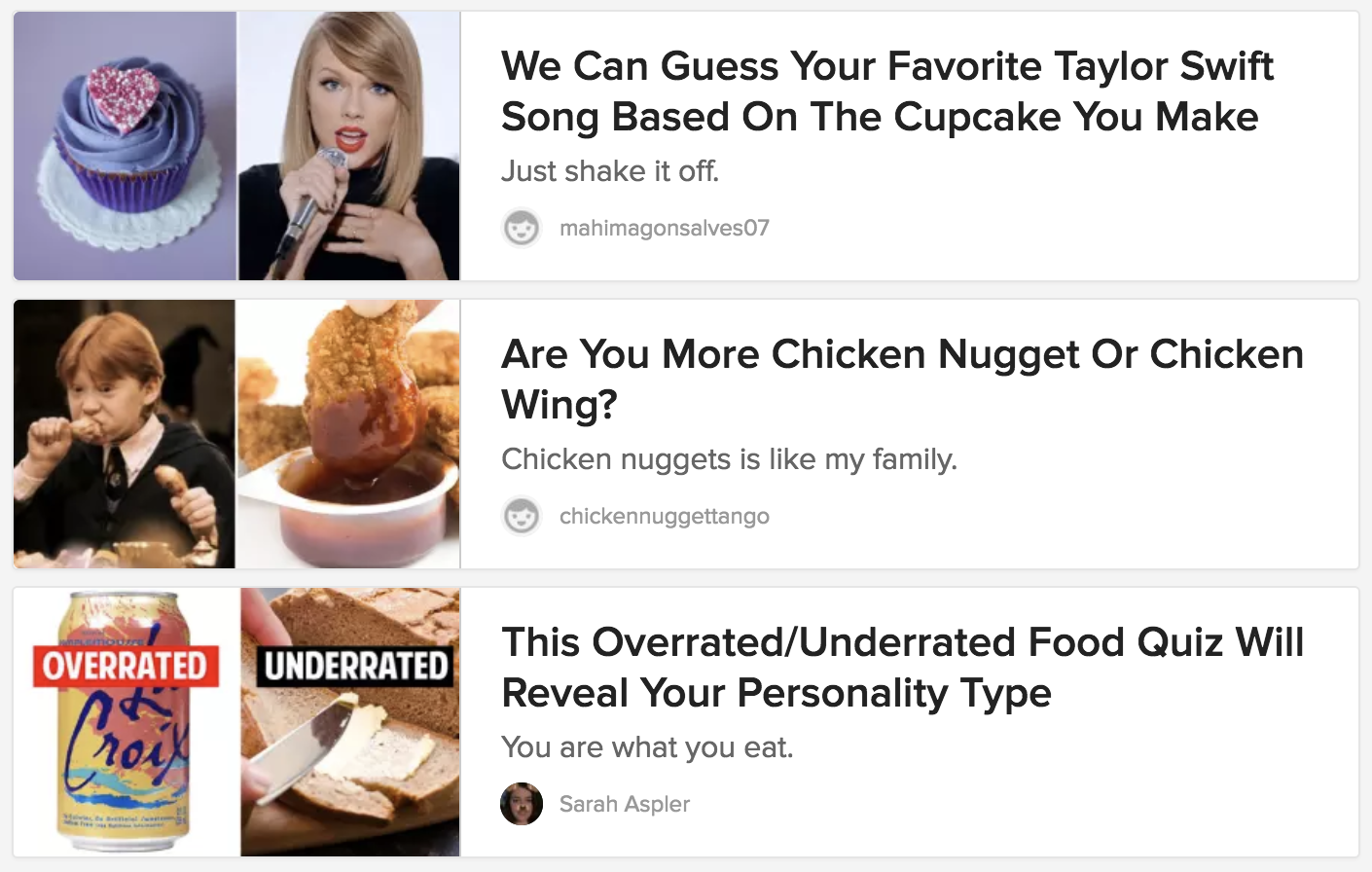
Personality quizzes have been red-hot engagement magnets for years on Buzzfeed, and it’s easy to create them to promote your brand with a template-based tool such as ShortStack.
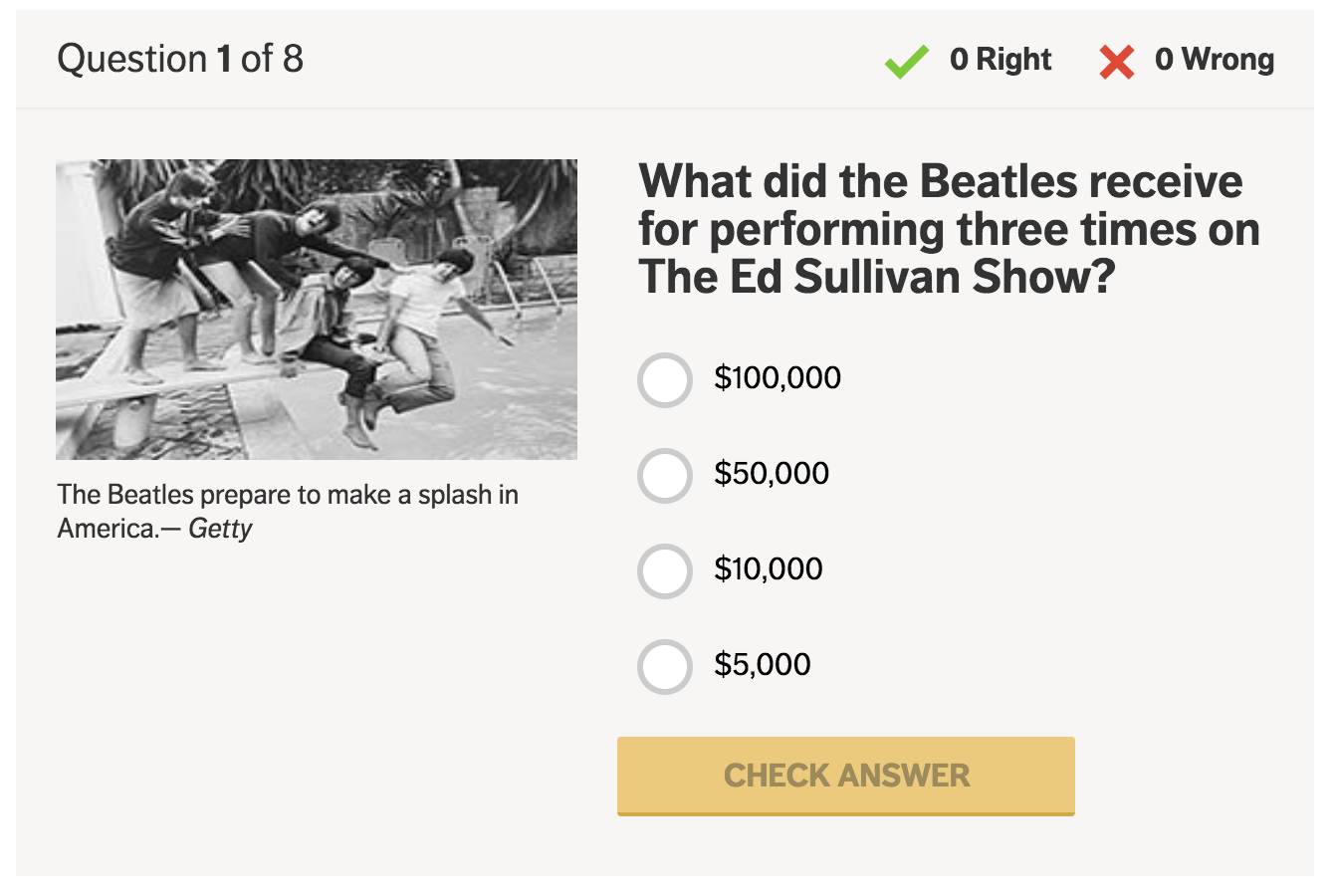
Nice going AARP. “Test Your Beatles Trivia Knowledge” engaged me, but you could have asked a few easier questions. I went 0–for-8 (and I’m a huge Fab Four fan).
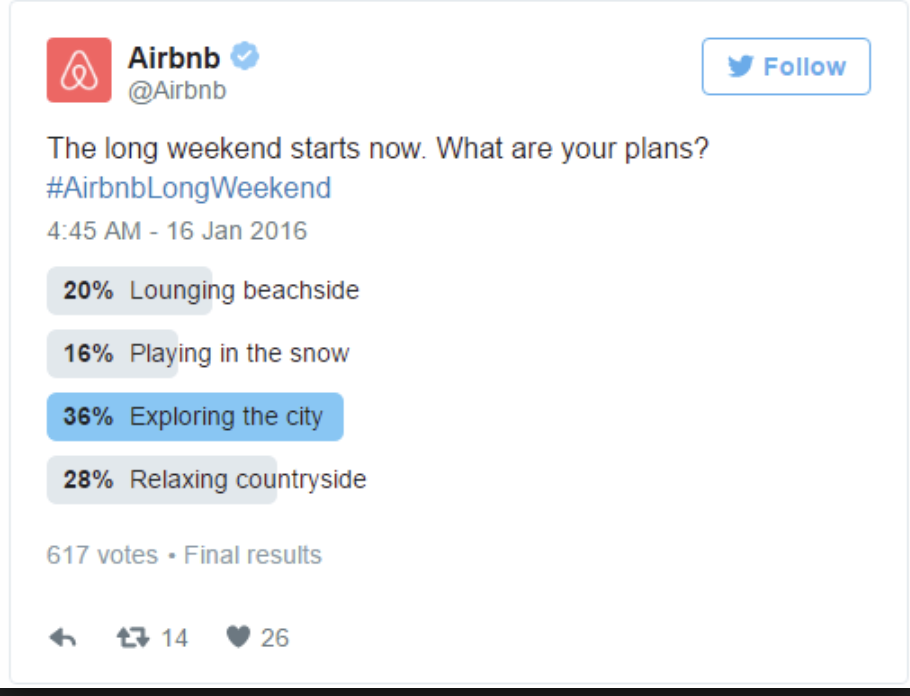
This simple Twitter poll from Airbnb does a great job of engaging followers without any fancy tools.
E is for Expression
“E” is for “expression” because of the way social and mobile have collided, making the ubiquitous smartphone a personal expression machine.
It doesn't matter how you create content. The camera might be front or rear facing. Audio might be on or off. Filters, emojis, stickers and so forth may be applied or not. Posts may be permanent or self-destructing. I could go on, but I think you get the idea. Smartphone apps enable people to express themselves every which way, and so they do.
Here are a few ways you can encourage your audience to create content featuring your brand:
Hash it out. The hashtag has become the click-to-connect ticket for bonding with like-minded people. When you put something of interest out there, do a little hashtag research first, or hash out a unique phrase that reflects your brand. Hit that # key, and invite your followers to jump in and hashtag content related
Conduct media upload contests. Many social media fans adore Instagram and Facebook contests, and are especially engaged in the types that involve shooting and sharing original photos and videos. Contests may call for other forms of self-expression as well, such as: recipes, recordings, illustrations, poems, essays, and more.
Rally reviewers. Thanks to pioneers like Amazon and Yelp, reviews, ratings, and testimonials have been baked into the fabric of ecommerce selling spaces and beyond.
Showcase customers, partners and employees. Provided you’re doing something people like, consider creating advocacy programs featuring customers, partners and employees to catalyze your community, amplify your voice, and engage newcomers by giving them a platform to express themselves.
Let's take a look at an example:
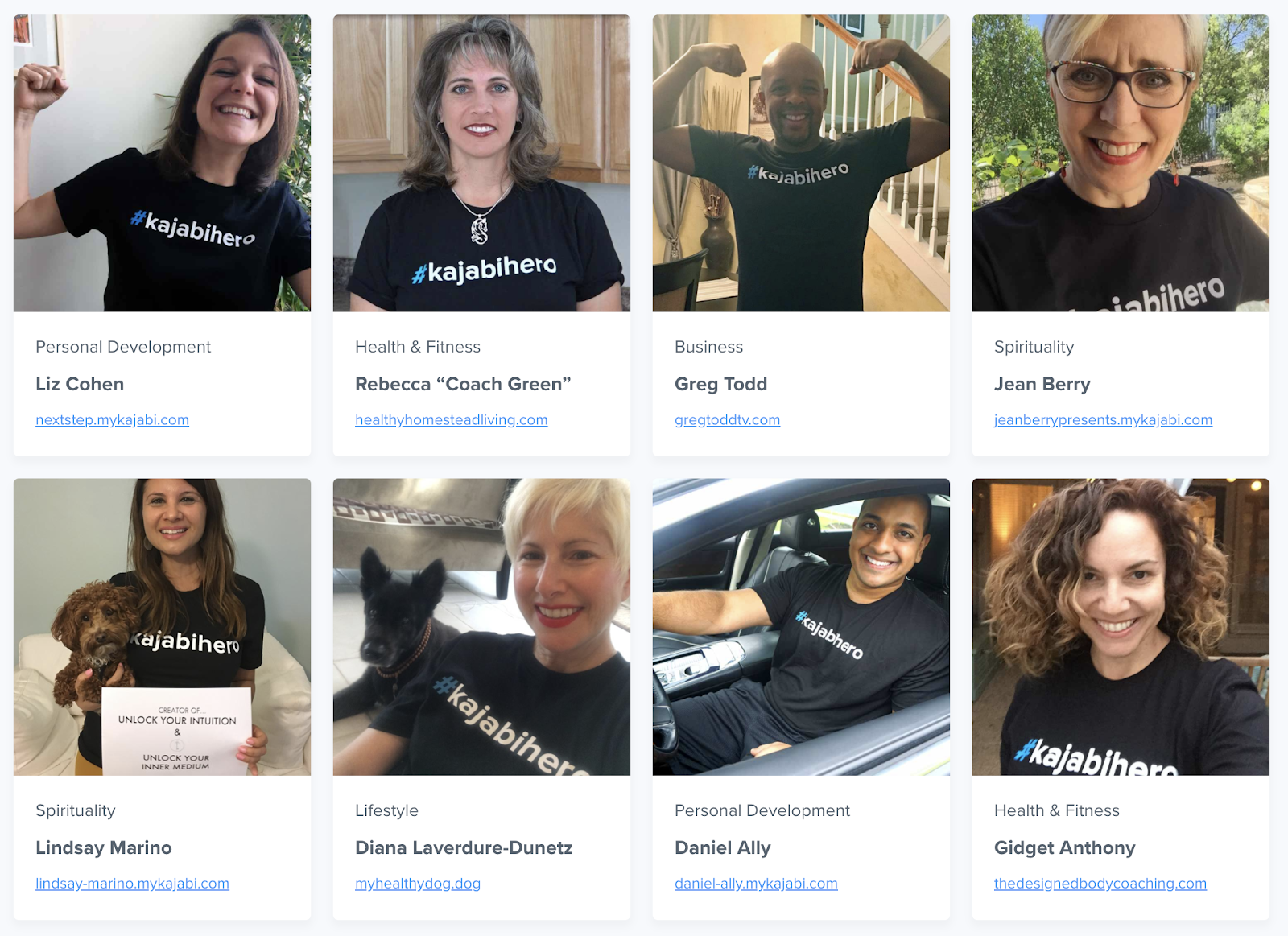
#KajabiHero is an impressive example of customer advocacy at work. Satisfied customers happily endorse the “knowledge commerce platform,” and wear their t-shirts proudly. They're rewarded with special features, links to their websites, and social media support.
I is for Incentive
I’ve mentioned numerous forms of interactive content, some of them competitions, but have yet to introduce the term “gamification.” People like to play games, compete, keep score, and most of all, win.
Satisfy your audience’s competitive spirit by featuring compelling incentives in your promotions. As incentives go, valuable prizes loom largest, but you may be surprised how even small rewards prove to deliver a sizable lure.
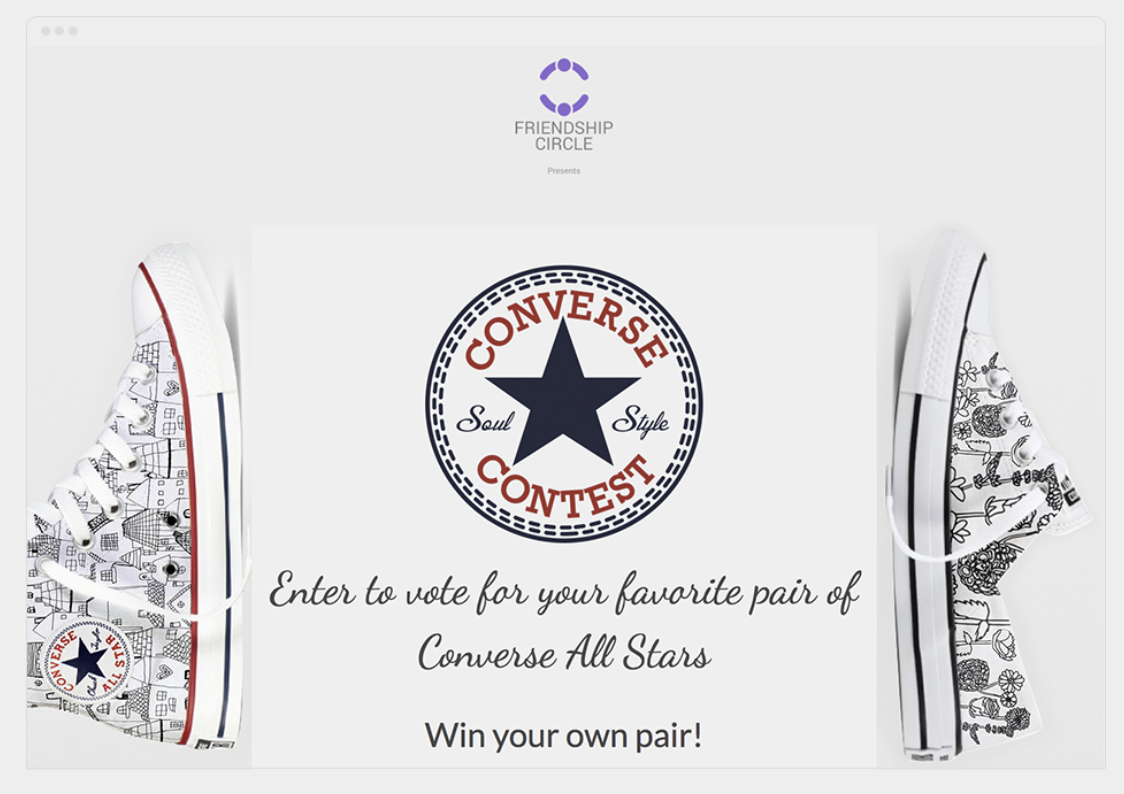
The entry form on this promotion by Michigan’s Friendship Circle explains, each person who casts a vote for their favorite pair of hand-drawn Converse All Stars will be entered into a drawing for a chance to win a free pair of the winner. The winning shoe was subsequently reproduced and sold as a fundraiser.
O is for Offer
Your engagement strategy doesn't need to be interactive or gamified 100% of the time. Your brand can engage customers and prospects the old fashioned way, with attractive offers such as:
Instant coupons and discounts
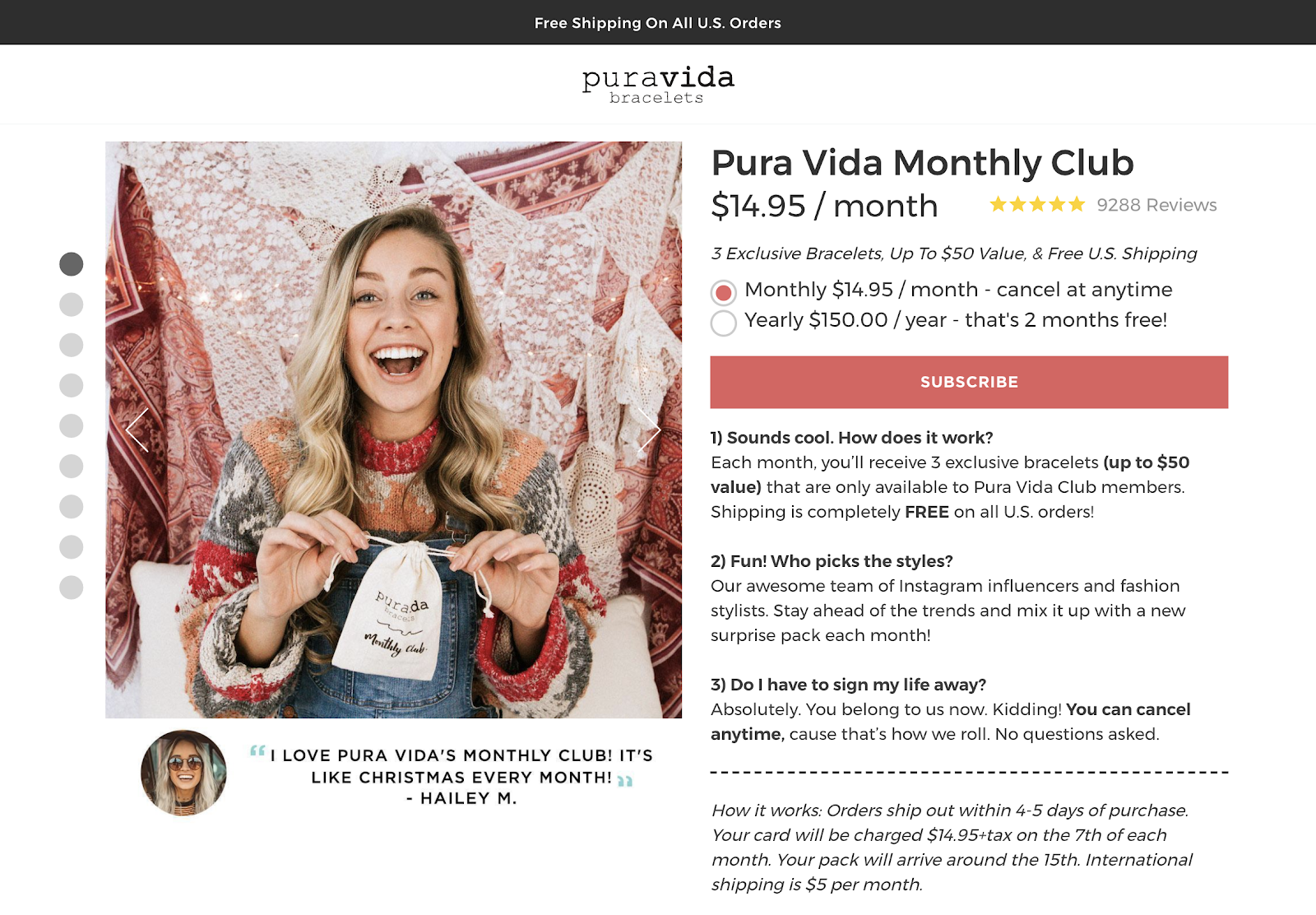
Membership clubs (example below)
Pick your discount promotions
Free shipping
The link in Pura Vida Bracelet’s Instagram bio invites you to “join the Pura Vida Club.” BTW, the brand’s Instagram feed (1 million followers) bubbles over with joyous photos, mostly from customers, engaging questions, challenges, posts about charitable causes, and conversations.
Experiment with different types of offers to discover what your customers best respond to.
Facebook makes it easy to promote offers. A flavor of the Facebook ad portfolio is the “offer ad.” Offer ads can be redeemed online and/or be saved by Facebook fans to be redeemed in-store.
Make discounts substantial. Offers with free items or with discounts of at least 20% off will reach more people.
Use an engaging image. Photos of people using a product often perform better than photos of a product by itself, and both generally perform better than logos.
Set an expiration date. Give people a few days to discover and claim an offer and allow time for your offer to be shared among friends. The ideal length of an offer is 7 days.
Promote your offer: After creating an ad for your offer, pin it to the top of your Page to help it get noticed.
U is for Utility
Engagement and utility are close friends on the web today.
Data from a research report about interactive contact from Content Marketing Institute and ion interactive reveals the top two reasons for using interactive content are (1) educating the audience and (2) engagement.
A major majority of savvy B2B marketers put utility at the forefront of their content marketing programs. Useful content created to engage prospective customers could include tools, blog posts, video, infographics, downloadable guides, mini-courses, helpful email sequences, webinars, and much more.
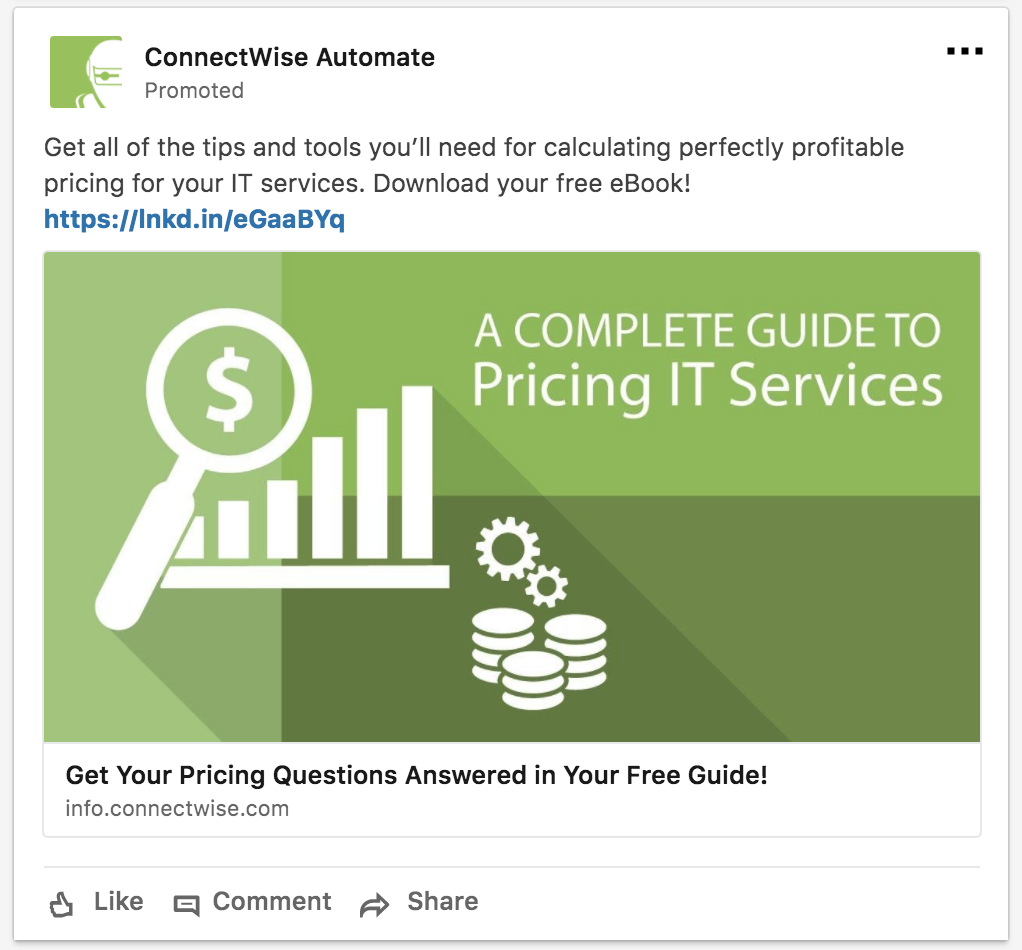
Above is a LinkedIn ad from ConnectWise Automate that offers what appears to be a highly useful guide to help vendors price their IT services.
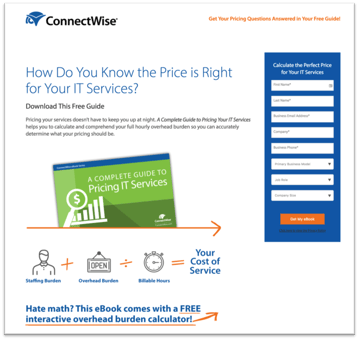
The ad is the pitcher… and here’s the catcher: a highly engaging and smartly designed landing page.
I love the question style headline, the directional cues, the 1/2/3 infographic vignette, the very cool bonus offer (a calculator), and the nicely designed form.
Utilitarian marketing ideas work offline too—and for any size company or individual.
I love the story from Jay Baer’s bookYoutilityabout Taxi Mike. Jay calls an enterprising taxi driver he encounters a “one man Trip Advisor.” The driver created the Taxi Mike Dining Guide (above) and updates it regularly to handout to his passengers.
How will you AEIOU engagement with your brand?
A quick review:
(A) Asking Questions
(E) Invoking Expression
(I) Providing Incentives
(O) Making Offers
(U) Delivering Utility
I hope you found these ideas and examples useful -- and engaging.
I first discovered Akinator after attending a panel at the Austin Fairmont, where Google had installed a series of phone-booth-like cubbies in which users could interact with its Assistant technology and experience its capabilities.
I was lucky enough to be ushered into the one where this supposed mind-reading app was featured.
To be fair, Akinator doesn't actually boast being able to hear all of your thoughts. Rather, it can guess which movie or TV character you're thinking about.
When I prompted Akinator to begin, I was thinking of George Banks: the titular character in the 1991 version of Father of the Bride, played by Steve Martin.
To figure this out, Akinator asked me a series of (seemingly never-ending questions), such as, "is your character a villain?", "does your character eat people?", and "does your character have white hair?"
Long story short: Akinator did figure out that I was thinking of George Banks.
So, why is Google promoting this app?
According to my research, Akinator isn't exclusive to Google Home -- I was also able to find it in the Apple app store.
But it's also worth mentioning that Google may be looking to move into Amazon's territory. Remember when I tried using three smart speakers at the same time? One of the better differentiating features of Alexa was its broad repertoire of app-like skills, including a digital, voice-activated boxing coach.
By incorporating such interactive, game-like apps as Akinator, perhaps, Google could be looking to build its own portfolio of entertainment use cases.
I'll be at SXSW all week and tweeting about these, well, weird things as I discover them. Feel free to follow along on the wild, bizarre ride.
Let’s be honest (which, we admit, may be slightly ironic for an article about lying) and confess we’ve all been tempted to lie in an interview.
But most of us also know telling whoppers will get us nowhere fast, and so, we give it to a recruiter straight -- for better or worse. Unfortunately for recruiters and hiring managers, not all job candidates are so scrupulous.
So how can they spot and liar? And what should they do once they do? Sharlyn Lauby, president of ITM Group Inc. and founder of HR Bartender, has some expert advice for exactly how to navigate this tricky situation.
First, “if a candidate is truly lying, it’s important for the company to realize it prior to the person being hired,” Lauby says. “If the candidate lies about their knowledge, skills, or abilities, they could be placing the company and themselves at real risk.”
To spot a liar in an interview, Lauby suggests paying attention to three key factors:
How to Spot a Liar in an Interview
1. Check for consistency.
Over the course of the interview process, consider asking the candidate the same question multiple times to see if you get the same answer each time. “For example, ask, ‘Are you able to work nights, weekends, and holidays?'” Lauby says. “If a candidate says ‘Yes!’ during the first interview but hesitates during another one, it’s a red flag that the company should try to get an honest answer.”
2. Watch out for too-good-to-be-true stories.
You know the saying: if it sounds too good to be true, it probably is. “This isn’t to say that incredible candidates don’t have great stories to tell,” Lauby says. “But if a story sounds too good to be true, a hiring manager can ask some follow-up questions to make sure the candidate can explain the story in detail. For example, if a sales manager exceeded their sales goal by 500 percent, he should be able to provide specifics. In fact, he should want to.”
3. Study body language and tone.
According to Lauby, “short answers and fidgety body language might be an indicator that a candidate is uncomfortable responding to certain questions, such as, ‘Why did you leave your last employer?'” But that’s not always the case—so be careful when studying a candidate’s body language and tone.
“[Nervousness] can also be a sign the interviewer isn’t doing a good job of making the candidate feel welcome,” Lauby warns. “Hiring managers need to learn how to make candidates feel at ease, so they are open [and honest] with their responses.”
If you feel you’ve got a liar in your midst—or your office, as the case may be—your first step is to ask clarifying questions and for specifics to see if the candidate is able to back up any inconsistent or wildly positive past experiences, Lauby says. “For the body language situation, offer to give the candidate a tour,” she suggests, “and then resume the interview. See if that helps [the candidate to relax and open up]. Or have the candidate speak with another manager and see if he or she gets the same vibe.”
The important thing to keep in mind, Lauby says, is “the hiring manager [should be] absolutely, positively, totally, completely sure that the candidate was lying” before discounting or dismissing a job candidate. “I understand being suspect about a response,” she says, “which is why hiring managers should ask probing questions to get additional information. And don’t forget all of these questions need to be legal.”
Do you want to sell your Shopify products and services on Facebook? Looking for tips to help? In this article, you’ll find four tips to integrate a Shopify store with your Facebook (and Instagram) marketing. Why Integrate Your Shopify Store With Facebook? As with any type of integration, connecting your Shopify store with your social [...]
Write your name, email address, and phone number at the top.
Verify that your email address and related contact information sound professional.
Include the jobs that are most relevant to your target industry.
Describe each company, job title, your responsibilities, and your accomplishments. Be specific!
Summarize this experience in a separate "Key Skills" section.
Copy your text into a resume template that fits the tone of your industry.
Verify that your text is aligned, consistent in format, and clickable when linking to samples.
Incorporate keywords that automated resume scanners might look for.
Proofread for grammar, brevity, and specific action verbs.
Convert your resume to a PDF file.
I can't think of many tasks people dread more than writing a resume. There are so many little things you need to add, rephrase, check, double-check, triple-check ... and yet, somehow, your resume still goes out with your name as "Corey Wainwrite" from "HubStop." It's anxiety-inducing.
So, I did what I do when I'm anxious: I made a list of all the little things you need to do when writing and editing your resume.
Here's my checklist of resume tips -- and I wish you the best of luck with your job search.
The Ultimate Checklist of Resume Tips
I've divided all the must-do tasks into four sections and did my best to order them chronologically. Some could probably exist in more than one section or be completed in a different order, so I've ordered items where I thought they most naturally fit during the resume-writing process.
Is Your Contact Information Professional? Things to Check:
Have you included your basic contact information -- including your name, email address, and phone number -- at the top?
Is your email address professional? (e.g. sara@gmail.com vs. sarabear@gmail.com)
Is your email address associated with a familiar domain, like Gmail? (Outdated domains can be a red flag for tech-savvy companies.)
Do your resume details align with your LinkedIn profile? (Hiring managers will likely review both.)
Have you included links to social media profiles, portfolios, and a personal website if relevant?
Have you audited your social profiles to ensure no unprofessional content is available to the public?
Have you customized any communication within your resume that addresses the company or hiring manager by name?
If you're sending your resume as a Google Doc, have you granted the recipient the proper permissions to view it (or opened up permissions to everyone)?
Is Your Resume Written for the Industry? Things to Check:
Are you writing in a tone that matches that of the company to which you're applying? (For instance, while still writing professionally, you might use a different tone when applying to work at a new tech startup versus an established accounting firm.)
Have you customized your resume for the specific job to which you're applying? (Highlight work experience and skills that are relevant to the position -- don't just write down every job you've ever held.)
Do you have a clear objective at the top of your resume that is company-focused, rather than you-focused? (You don't need one, but you do need a "Key Skills" section that summarizes who you are and what you can offer the company.)
Have you included both accomplishments and responsibilities under each job? (Both should be easy to ascertain when scanning your resume.)
Have you used numbers and metrics where possible to better convey your success? (For example: "Generated 150 marketing-qualified leads.")
Do you illustrate career progression? Is it clear that you were promoted, gained additional responsibility, or switched jobs laterally to acquire more skills?
Have you listed not only the names of companies, but a short description of what each company does?
Have you included your tenure at each company?
Have you included relevant information about your education?
Have you added anything that points to your personality or interests outside of work?
Does your unique value proposition shine through? (E.g., something that makes you stand out from other applicants, or highlights that you're uniquely qualified for the position.)
If relevant for the position, have you included links to a portfolio or samples of your work?
Have you included reference names and their contact information, or simply, "references available upon request"? (Both are okay -- just be sure to use at least one to indicate that you even have references.)
Is Your Resume Properly Formatted and Designed? Things to Check:
Have you used a resume template so the layout of your resume is visually appealing and easy to read? (Get 10 free templates here.)
Is your resume too creative? (For instance, if you're applying for a creative position and have formatted your resume as an infographic ... is it really simple enough to read, or is it best to save that creativity for your portfolio?)
Have you selected a clear, easy-to-read font? Is your name clearly stated at the top? (It's a good idea to make your name slightly larger than all other text -- employers read many resumes every week, and you need to be memorable.)
Have you made use of common formatting conventions that makes content easier to read, such as bullet points and header text?
Has your formatting remained consistent across all positions? (For example, if you've bolded job titles, are all job titles indeed bolded?)
Are your margins even?
Are all items properly aligned? (For example, if you've right-aligned dates, are they all lining up in tandem with one another?)
Are all links you've included clickable?
Have you converted your resume to a format that allows all recipients to read it as intended, without downloading specific fonts or needing special software? (A PDF format is recommended.)
Is Your Resume Edited and Polished? Things to Check:
Have you included keywords in your resume? (If you're submitting to an automated system, it might be critical to getting past filters. Be sure your resume directly reflects some of the software and skills mentioned in the job description.)
Have you edited it for brevity? (Try to keep your resume to about one page per 10 years of job experience, if possible.)
Have you removed irrelevant job experiences?
Is each section of your resume ranked in a way that highlights your skills and what you have to offer the employer? (For instance, if you're a recent graduate with internships in different fields, you might list your most relevant experience at the top, instead of ordering everything by date.)
Have you edited out generic action verbs in favor of more specific ones? (For instance, "managed" instead of simply "worked.")
Have you made use of a thesaurus to prevent monotony?
Have you found more professional alternatives to unprofessional-sounding terms? ("Tasked with," for example, can make you seem less proactive than someone who "coordinated" various projects regardless of who told them to.)
Are your special skills all truly special? (While speaking a foreign language is indeed noteworthy, these days, it might be redundant to mention that you're proficient in Microsoft Word or capable of using email.)
Have you done a sweep for annoying jargon or business babble? (Everything should be clearly articulated, so it's easy for the hiring manager to quickly understand what you do.)
Is everything 100% true? (If you write that you're fluent in a foreign language on your resume, you should be prepared to speak that language during your interview. If you say you like baking, you should be ready to explain which ingredients you need for certain dishes.)
Have you conducted spelling grammar checks?
Finally, have you asked a friend who hasn't read your resume before to provide a final glance for errors, inconsistencies, or confusing phrasing?
If you've checked the boxes of all the resume tips that apply to you, you should be ready to submit your application.
Instagram has become the favorite social network of many -- and not just for teens and Millennials. In fact, according to the Pew Research Center, 35% of online adults use Instagram -- up 3% from 2016. Compare that, for example, to 24% on Twitter.
Plus, folks don't just use Instagram casually, as 38% of them use it several times each day.
But for those who have never used the platform before, or those who just want to take their usage to the next level, Instagram has some lesser-known tricks and settings. That's why we set out to find them and list them all in one place.
Whether you're a recruiter looking to showcase your company's culture, a marketer in the ecommerce industry, or an individual who's just looking to use Instagram in the best ways possible, there are tips and features here for you.
And for a quick overview of these hacks, check out this rundown from HubSpot Content Marketing Strategist Megan Conley.
Note: Before getting started, make sure you're operating on the latest version of Instagram. At the time of posting, the latest version is 35.0 on iOS, and varies according to the device.
20 Hidden Instagram Hacks and Features
1. Get Notifications When Your Favorite People Post
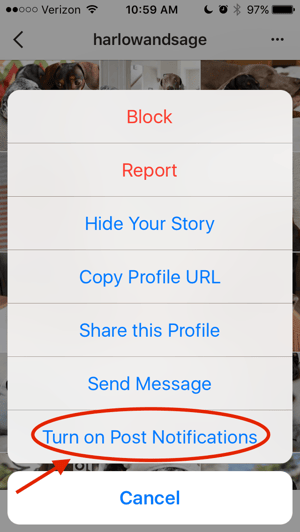
Never want to miss an Instagram post from your favorite influencers again? You can choose to get a notification every time a specific user posts a new photo. All you have to do is turn on notifications for each user individually.
To turn on these notifications, visit a user's profile, click the three dots in the upper right-hand corner of the post, and choose "Turn on Post Notifications" from the menu that appears.
Want to turn post notifications off? Just follow the same steps. It's important to note that you must enable notifications from the Instagram app in your phone's settings -- here's how.
To allow notifications on iPhone/iPad: Go to "Settings," then "Notifications." Choose "Instagram" and then turn on the setting to "Allow Notifications."
To allow notifications on Android: Go to "Settings," then choose "Apps," then "Instagram." Select the option to show notifications.
2. See All the Posts You've Liked
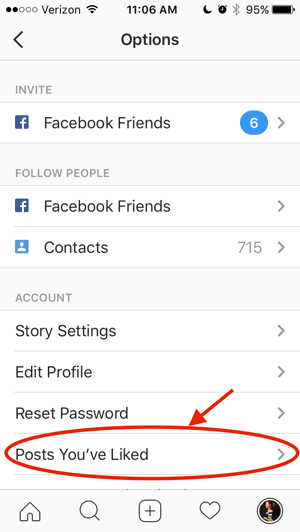
Ever wanted to see the posts you've Liked, all in one place? All you have to do is go to your own profile and click the "Options" button -- a gear icon on iPhone/iPad, and three dots on Android -- then, click "Posts You've Liked."
To un-Like any of the posts you've Liked, simply go to the post and deselect the "heart" icon below it. Don't worry -- the user won't be notified that you've un-Liked the post.
3. Add and Manage Multiple Accounts From the Same Device
Have a separate account for your dog? Don't be embarrassed; stand by your puppy profile. In fact, whether it's a pet account or a business account, you can add and manage this one right alongside your personal account. Here's how:
From your profile, tap the gear icon (or the three dots on an Android device) and select "Options."
Scroll to the very bottom and tap "Add Account."
Add your other account by username and password, and you're all set!
To toggle between both profiles, hold down your profile picture in the navigation bar to view all connected accounts. You can also switch to a different account through the Options page mentioned earlier. See what this screen looks like in the Instagram feature below.
4. Schedule Posts in Advance
Instagram being a mobile app, you're probably in a routine of taking photos and posting them to your Instagram Story on the fly. But, you can also pre-post them from your computer for a set day and time in the future.
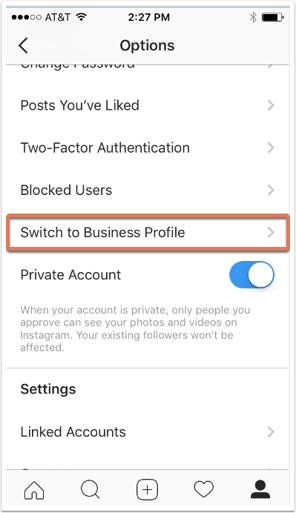
This feature is available with a social media scheduling tool, as well as HubSpot if you have an Instagram business account. If you have this business profile, switch to it via the Instagram mobile app and follow the prompts to connect it to Facebook.
Depending on the social scheduling tool you use, you might not include this step. Once you've toggled to the right account, however, you'll launch your scheduling tool, navigate to your current connected profiles, and see Instagram as an available integration.
5. Create a Collection of Saved Posts
In addition to being able to view all of the posts you've liked, Instagram also has an option to save or bookmark certain posts in collections that you create.
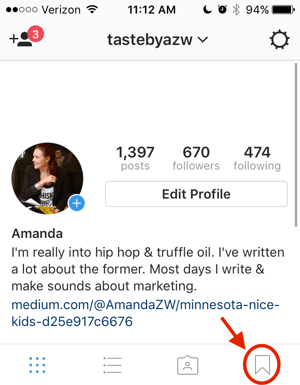
Start by going to your profile, and tapping the bookmark icon on the top-right menu above your photos.
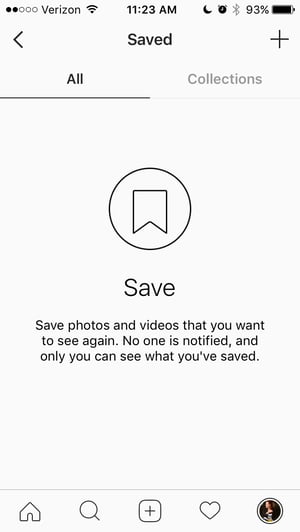
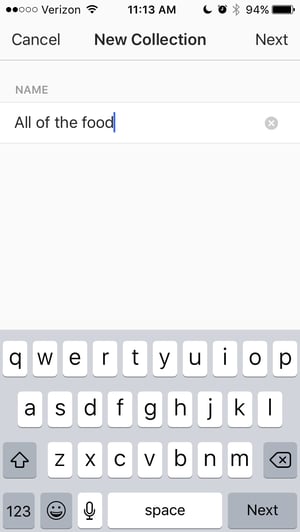
Select the "Collections" tab, and tap "Create Collection." Below, I've created one for food-related posts I particularly like.
Hit "done," and you can start adding photos to your collection. To do so, tap the bookmark icon below the post you want to add.
Then, go back to your saved photos by following the previous steps. You'll see the photos you've saved -- to add them to your collection, select the collection you want to add to, and tap "Add to Collection." From there, you can add any of your saved photos.
6. Create Stories Highlights to Show Stories for Longer Than a Day
Like in Snapchat, posts to your story only stick around for your followers to see for 24 hours. But sometimes, you have a story that deserves more daylight to be told.
That's where Stories Highlights comes in, a new feature by Instagram that allows you to save stories together in the same space on your profile page. If you ever wondered what that "New" button with the "+" icon was below your profile image, this explains it.
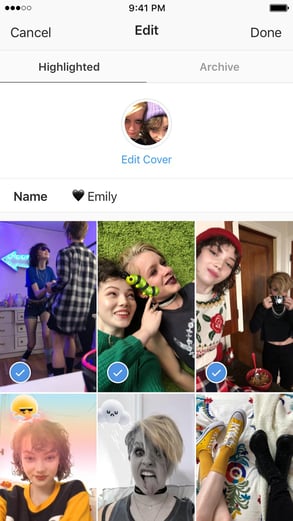
To make a Stories Highlight, tap this New option and select any number of past stories in your album:
Then, give it a cover photo and a name to display as its own Instagram Story on your profile page. You can remove Stories Highlights at any time by tapping and holding down this story.
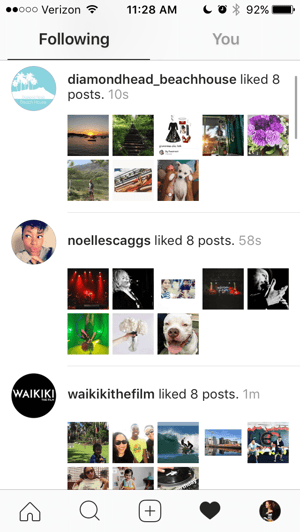
7. See the Posts Your Friends Recently Liked or Commented On
When you're looking to discover new people to follow on Instagram, there's nothing like asking your friends. There's a quick way to do that -- by viewing the recent liking and commenting activity of the people you follow.
To do that, click the heart icon at the bottom of the home screen -- the first thing that should appear is a list of likes and comments on your photos. Choose the tab near the top that says "Following," and you can see the activity of users you follow.
8. Look Through Pictures Without Accidentally Liking Them
It's pretty easy to learn how to like something on Instagram -- so easy, in fact, that people do it accidentally: It's just a quick double tap of the photo once you've entered its full view.
The thing is, it's so easy to do quickly by mistake. So, here's a quick Instagram cheat for you: To look through someone's photos without "double-tap paranoia," scroll through Instagram feeds with your phone set to airplane mode. Without internet access, you won't be able to Like a photo, even if you accidentally double-tap it.
The pictures won't load in the first place if you start on airplane mode, though. You'll have to go to the feed first to load the posts, then turn on airplane mode, then start scrolling. When you reach the end of the first rows of posts and want to load more, simply turn airplane mode off, let more load, and then turn it on again. Cumbersome? Maybe a little, but it could be worth the paranoia mitigation.
To turn on airplane mode on an iPhone/iPad: Swipe up from the bottom of the screen and click the airplane icon. Or, go to "Settings" and then "Wi-Fi," and switch "Airplane Mode" on.
To turn on airplane mode on an Android device: Swipe down from the top of the screen. Then, swipe from right to left until you see "Settings," and then touch it. Touch "Airplane Mode" to turn it on.
9. Hide, Delete, or Disable Comments on Your Posts
Twitter may carry a more "anything goes" culture of commentary, but your Instagram is your domain -- and it's much easier to control who says what on your content. This is especially important if you manage a business account.
To Filter Comments by Keyword:
In the Instagram mobile app, navigate to "Options" and select "Comments." From here, you can toggle on "Hide Inappropriate Comments" and even enter specific keywords you'd like the app to police within each comment.
To Delete Comments:
Tap the speech bubble icon below the comment you'd like to delete, and swipe lightly to the left over this text. Select the garbage can icon that appears to delete this post. You can also do this to your own comments.
To Disable Comments Entirely:
To clarify, you can't turn off comments across your entire profile; you can only disable them for individual posts.
To do so, start posting an image on which you'd like nobody to comment. When you reach the page to add a caption, tags, and location, tap "Advanced Settings" at the very bottom. This will open a screen where you can easily switch on an option labeled "Turn Off Commenting."
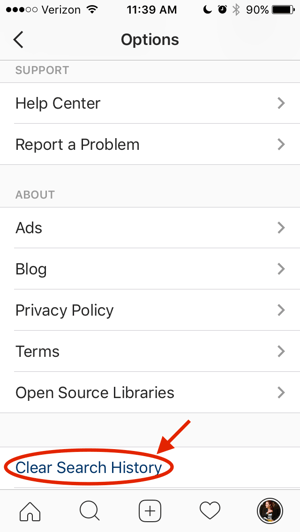
10. Clear Your Instagram Search History
We swear -- this blog post isn't all about how to convince people you're not an Instagram creeper. But many of us can relate to the desire to clear our online search history everywhere, including on this particular social channel. Luckily, you can.
To clear your Instagram search history, go to your own profile and click the "Options" button (a gear icon on iPhone/iPad and three dots on Android). Scroll down and click "Clear Search History." When prompted, click "Yes, I'm sure."
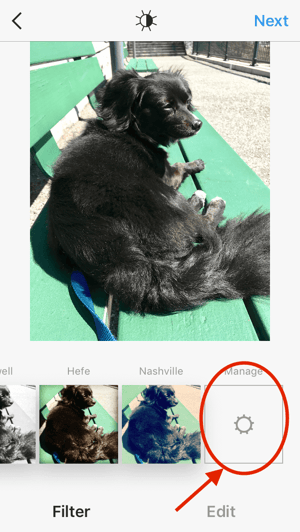
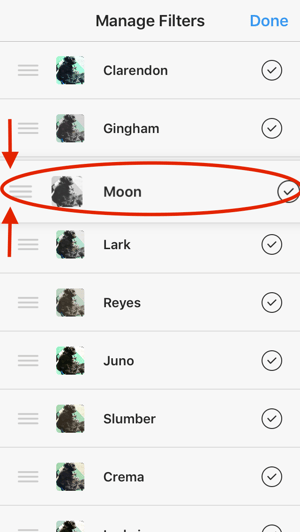
11. Reorder Filters, and Hide the Ones You Don't Use
If you use Instagram a lot, chances are, you have a few favorite go-to filters, and others you never touch. To make editing photos easier, you can reorder the filters in your editing window, and hide the ones you never use.
To reorder or hide filters, add a new post and begin editing it. When you get to the filters page, scroll to the very far right of your filters options and click "Manage."
To reorder filters, hold your finger down on the three grey lines on the far right of the filter you'd like to move, and drag it to reorder. To hide them, deselect the checkmark to the right.
12. Use Instagram as a Photo Editor (Without Having to Post Anything)
Perhaps you love Instagram's filters and editing capabilities, but aren't quite ready to post the photo to your account -- right now, or ever. To use Instagram as a photo editor without posting anything, all you need to do is publish a picture while your phone is on airplane mode.
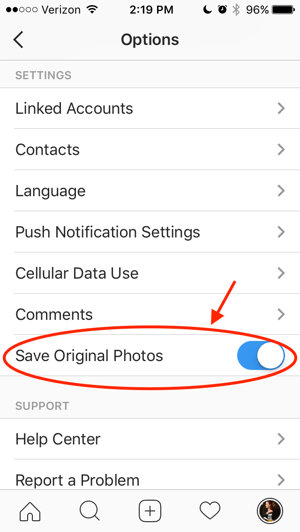
First, be sure you have "Save Original Photo" turned on in your Instagram settings.
Then, turn on airplane mode -- see instructions in #5.
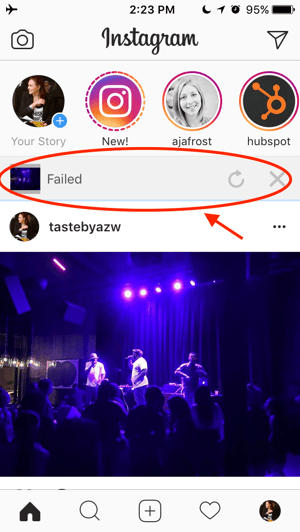
Next, follow the normal steps to post a photo to Instagram: Upload the photo, edit it, and press "Share." An error message will appear saying the upload failed, but you'll be able to find the edited image in your phone's photo gallery.
13. Insert Line Breaks Into Your Bio and Captions
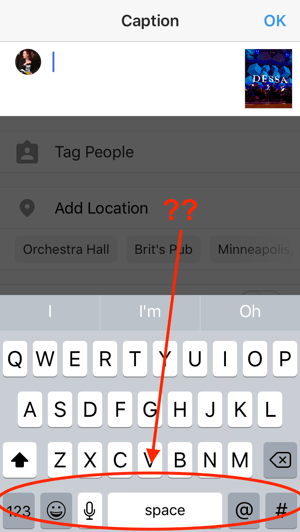
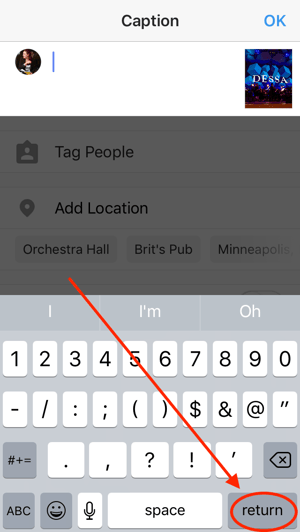
When you write a caption in Instagram, you'll see the keyboard doesn't give you an option to press "Enter" or "Return." The same is true for your bio. So how do all those people put line breaks in there?
It turns out that all you have to do is press the "123" key in the bottom lefthand corner of the keyboard, and the "Return" key will appear on the bottom right.
I know this tip sounds simple, but a lot of people miss it -- myself included, until a colleague clued me in. We've seen some elaborate solutions out there for hacking through this problem, like writing the caption copy in another app, then copying and pasting it into Instagram. Thankfully, it's much simpler than that.
14. Hide Photos You've Been Tagged In
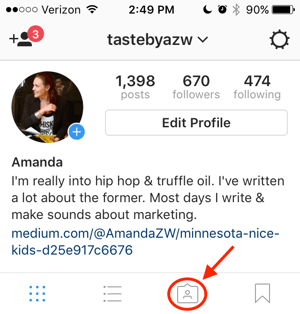
When someone tags you in a photo or video on Instagram, it's automatically added to your profile under "Photos of You," unless you opt to add tagged photos manually (see the next tip).
To see the posts you've been tagged in, go to your own profile and click the person icon below your bio.
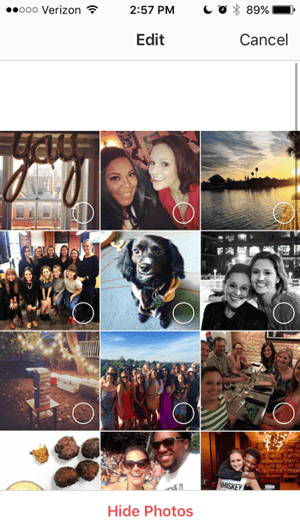
Then, to hide the posts you've been tagged in from other users, click the three dots in the top right of your screen and choose "Hide Photos." Select the posts you'd like to remove from your profile, and when you're done, tap "Hide Photos" at the bottom of your screen. When prompted, tap "Hide From Profile."
This won't remove the posts themselves from Instagram, but it will remove them from your profile, so you and others can't access them.
15. Adjust Your Settings to Approve Tagged Photos Before They Show Up in Your Profile
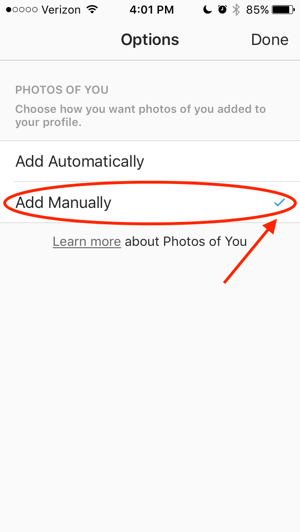
As we mentioned in the previous step, when someone tags a photo or video of you on Instagram, it's usually added to your profile automatically. But, you can change your Instagram settings to enable manually selecting which photos you're tagged in that show up on your profile.
To add tags manually, follow the same steps above to get to the photos in which you've been tagged, and click the three dots in the top right of your screen. Tap "Tagging Options," and select "Add Manually."
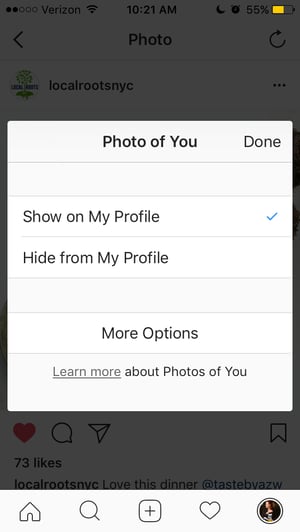
You'll still be notified when someone tags you in a photo. Once that happens, to manually add a tagged photo to your profile, tap the photo you were tagged in, then tap your username and select "Show on My Profile." And if you'd rather it not be visible, choose "Hide from My Profile" instead.
16. Browse Posts From Certain Locations
One fun thing you can do on Instagram is browse photos and videos from a specific location, or taken near your current location. I like to do that when I'm planning a trip somewhere, or want to check out a new restaurant and scroll through the pictures taken there.
Here's how to do both of these things.
To Browse Posts From at a Specific Location:
You can either search for a specific place, or you can click into a geotag on an existing photo.
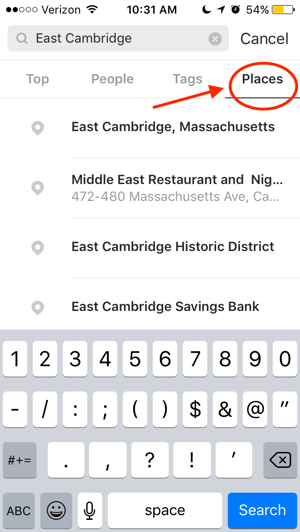
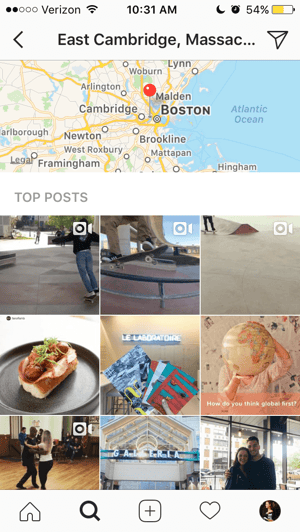
To search for a specific place: Tap the magnifying glass icon at the bottom of your home screen, which will bring you to the general search page. When you click into the search bar at the top, four tabs will appear. Choose "Places," and type in the name of a place. When you press "Search," it'll show you all the top and recent posts that were geotagged with that location.
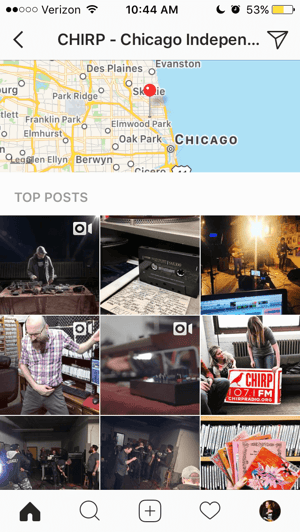
To look at posts with a certain geotag: Go to the photo that's geotagged with that location, and click the geotag. It'll show you all the top and recent posts that were geotagged with that location.
Browse Posts Near Your Current Location:
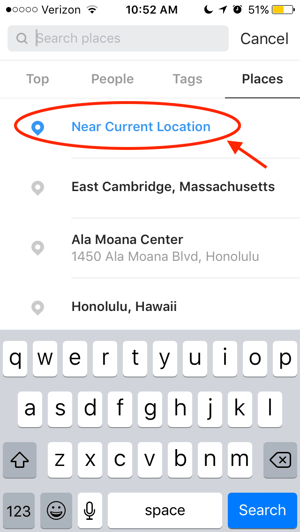
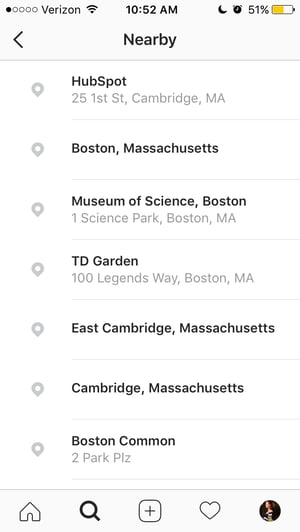
Follow the same instructions above to get to "Places." Tap the search bar, and select "Near Current Location."
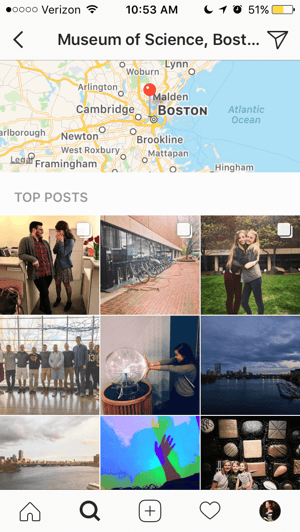
Choose which geotag you'd like to browse from the options that appear. Let's say I chose to browse posts with the Museum of Science geotag. When I click "Museum of Science, Boston" on the menu, I'll see the top and recent posts that were geotagged at that location.
17. Drive Traffic to an External Website
One of the biggest frustrations people have with marketing on Instagram is that clickable URLs aren't allowed anywhere except the single "website" box in your bio. If you put a URL in a photo caption it'll appear as plain text, meaning users would have to painstakingly copy the URL, open a web browser, and paste or type it in there.
One sneaky way to get people to visit your Instagram profile, which is where that one clickable URL is allowed, is to use your photo captions to encourage people to visit your profile for a link. Then, update that URL frequently to point to your latest blog content, YouTube video, product, or offer.
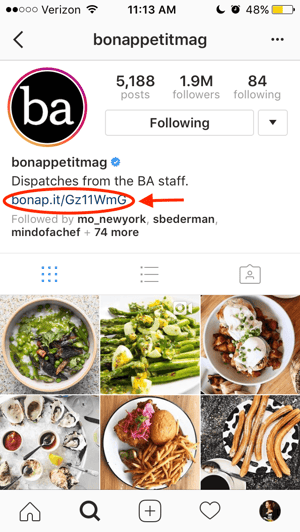
Check out the example from food magazine Bon Appétit below. This photo's caption provides a text call-to-action to visit the user's profile so you can click the link related to the post.
A post shared by bonappetitmag (@bonappetitmag) on May 11, 2017 at 3:02pm PDT
Then, in Bon Appétit's profile, you'll see the link itself. Update this link frequently to point to your latest content or offer.
Plus, if you have a verified Instagram account, you can also add links to your Story. Right now, that feature is still being tested, so you can read more about it here.
18. Pin Your Instagram Post to Pinterest
Instagram doesn't have a natural intregration with many social networks (except Facebook, it's parent company) for publishing Instagram posts to other social accounts.
But with respect to Pinterest, image-loving platforms stick together. Here's a backdoor way to Pin your latest Instagram Story to Pinterest:
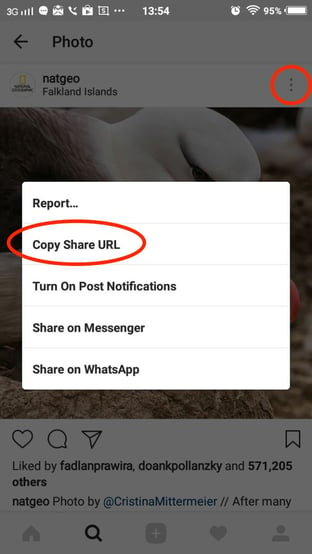
On the Instagram mobile app, tap a post to view it in full, then tap the three dots to the top-right of the image. Select "Copy Share URL" to attach the picture's link to your clipboard.
Open the Pinterest mobile app -- or download it; you'll need it for this step -- and navigate to your profile page. If you have the latest version of Pinterest downloaded, it might ask you as soon as you open the app if you'd like to produce the image from your clipboard.
If not, select the "+" icon to the top right to add a new pin, and you'll see a menu of options where you can add your "Copied Link" to a new Pin or board on your profile.
19. Hide Ads You Don't Find Relevant
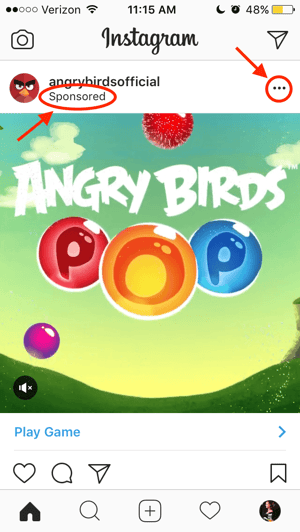
Instagram tries to show you ads that are interesting and relevant to you. You might see ads based on people you follow and things you Like on Instagram, or the third-party websites and apps you visit.
If you see sponsored posts you don't find relevant, though, you can let Instagram know and slowly teach its algorithm what you like and don't like to see.
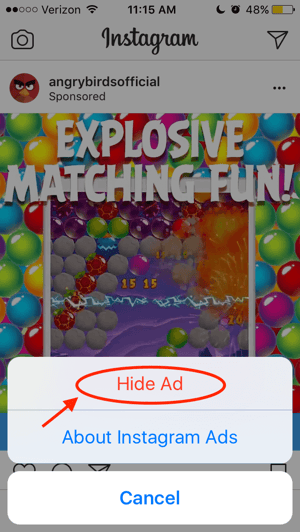
To hide ads on Instagram, tap on the three dots to the right of a post labeled "Sponsored," and choose "Hide This."
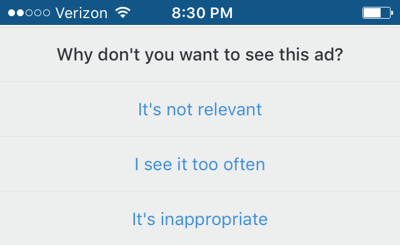
From there, it'll ask you to share why you don't want to see the ad anymore.
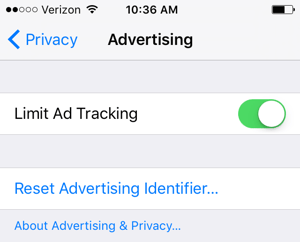
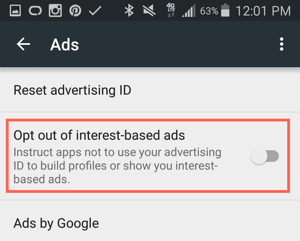
You can also opt out of seeing ads based on sites and apps off of Instagram and Facebook from your device's settings. Note that even if you choose to opt out of seeing these types of ads, you'll still see ads based on your Instagram and Facebook activity.
To limit ad tracking on an iPhone/iPad: Go to "Settings" and choose "Privacy," then "Advertising." From there, choose the option to "Limit Ad Tracking"
To turn off interest-based ads on Android: Go to "Google Settings," then "Ads." From there, choose the option to "Turn off interest-based ads."
20. Send Photos Privately to Your Friends
Posting photos with all of your followers or with the public isn't the only way to share content on Instagram. You can also share them with individual or multiple users, kind of like a Facebook message or group text message.
You can either send a new photo to friends, or send a photo that you or someone else has already posted.
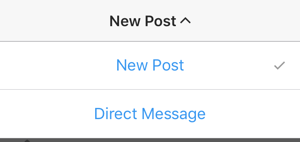
To send a new photo privately, upload a photo and begin editing it, as you would when editing a new post. When you get to the "Share" page, tap the top where it automatically says "New Post," but when prompted, select "Direct Message." From there, you can pick and choose whom you'd like to send the photo to.
You can access your direct messages at any time by clicking the mailbox icon at the top right of your homepage.
To send an existing photo privately, start by opening the post you want to share -- it can be your own or someone else's, as long as the latter has a public account. Next, click the paper-airplane-like icon below the post, then select who you want to receive it when the "Send to" box appears.
Insta-Hacks
I might be biased, but Instagram is one of the most fun (and visually appealing) social apps around. And now, with these tricks, you can use it to an even fuller extent.
Plus, many of these features can help to enhance your brand's presence on Instagram. Now, you know how to use the app more efficiently, to make sure you're only tagged in photos you want to appear on your profile, and have even more ways to engage with the people by whom you'd like to be discovered.

 http://bit.ly/2Gp6145


 http://bit.ly/2DqsLNU
 http://bit.ly/2FDDRRQ


 http://bit.ly/2mZZC8j







 http://bit.ly/2ijhsA9